Hosts
How to use Dispatch and Check-ins for a rental day
By Cruise & Scoot · October 29, 2026 · 5 min read
The short answer
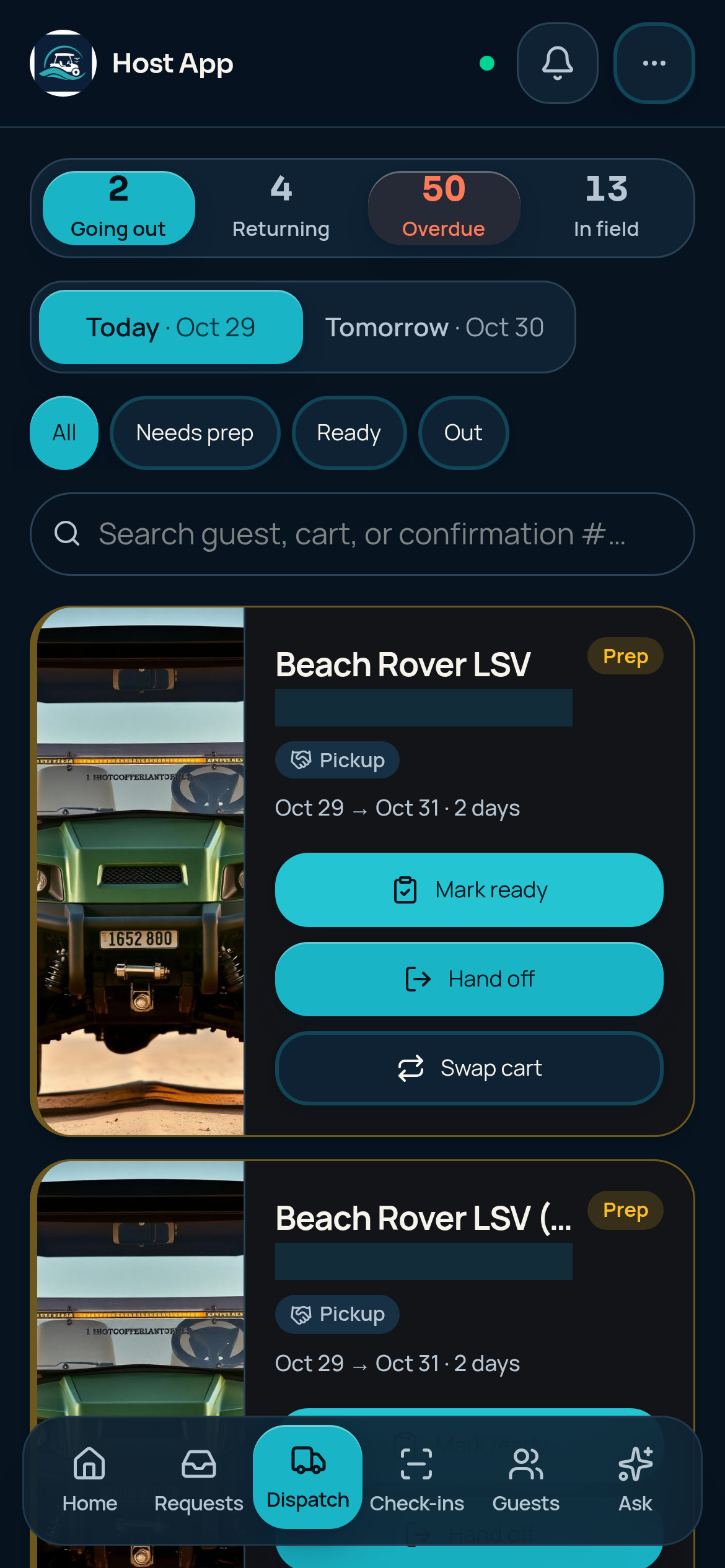
Open Dispatch from the Host App’s bottom navigation. Select Going out, Returning, Overdue or In field, then use the day and stage filters. Open Check-ins to find a booking by guest, cart or confirmation number. Confirm handoffs and returns only after they actually happen.
- Filters change your view, not the booking.
- Mark ready and Hand off represent different events.
- Queued offline actions need online confirmation.
1. Open the right Dispatch board
Tap Dispatch in the bottom navigation. Going out shows upcoming handoffs; Returning, Overdue and In field separate other work. Where offered, select Today or Tomorrow and use All, Needs prep, Ready or Out to narrow the view. An empty filtered view does not mean your entire fleet has no bookings.
2. Check the trip before preparing a cart
- Match the guest, booking reference, assigned cart and rental dates.
- Check whether the booking is pickup or delivery.
- For delivery, verify the saved destination before leaving; do not substitute a town name for a street address.
- Review the payment state separately from the scheduled handoff.
3. Prepare, then hand off
Inspect and prepare the cart before using Mark ready. Use Hand off only when transferring the cart to the guest, and complete the offered condition notes and photos. Swap cart is a separate action: review the replacement’s suitability and availability before confirming. Do not tap operational controls just to explore them on a real booking.
4. Find a booking in Check-ins
Tap Check-ins and use the guest, cart or confirmation-number search. Select the correct trip and review its dates and handoff choice. The screen groups records such as overdue returns and handoffs. Record condition and notes in the booking’s handoff or return action; photos require internet.
5. Record the physical return
Confirm the return only after receiving and inspecting the cart. A reservation end date is not proof that the cart is back. Record any issues and complete the return action, then check the updated trip. Prepare the vehicle again before treating it as ready for another rental.
6. Confirm offline work after reconnecting
Open needed records online before leaving coverage. Supported offline actions enter the pending-sync queue; they are not confirmed until accepted online. Reconnect, review any errors and read the trip again. New card collection needs internet, and a queued saved-card request is not money collected.
References and product details
Written by the Cruise & Scoot team using our published product workflows. Product details checked October 29, 2026.